
If you manage your clusters through Palette, you’ve probably been watching the MCP wave happen and wondering when we’d show up.
Well, here we are. Today we’re announcing the Palette MCP server in tech preview (which means non-prod use, folks), enabling you to connect your Large Language Model (LLM) of choice to interact with the Palette platform.
But let’s start at the beginning. What is an MCP server, how does it work, what can you do with it, and how is Palette using the MCP protocol?
The recap: what is MCP, anyway?
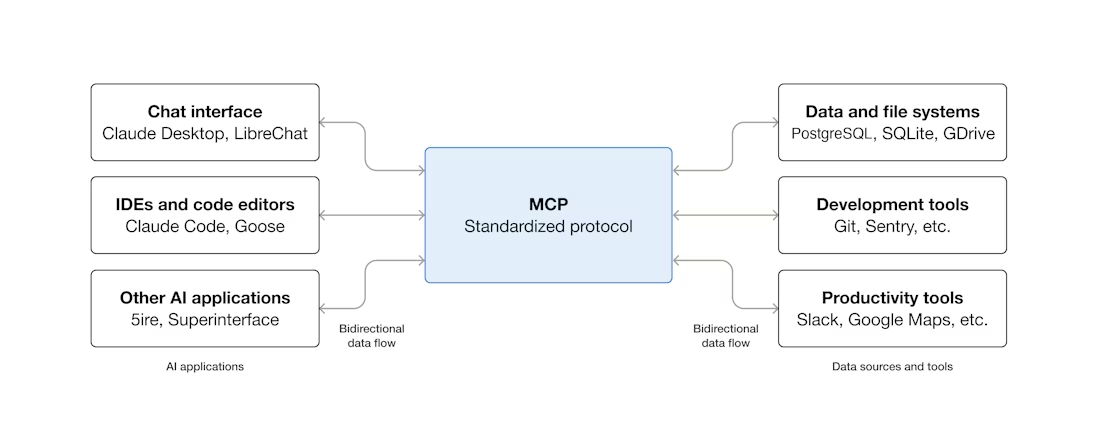
Model Context Protocol (MCP) is an open-source protocol for standardizing how we connect AI applications with other systems or applications to “do things”. The MCP official documentation compares MCP to the USB protocol. Just as USB lets you connect printers, cameras or keyboards to your laptop, MCP lets you connect LLMs to other apps and services.
The image below is borrowed from the official MCP documentation site and does a nice job of visually showing how you can use the MCP protocol to connect to different systems.
MCP servers come with “tools”. These tools are what allow an LLM or AI application to reap benefits from the MCP server.
Take the Slack MCP server as an example: the tool for “send message” allows the LLM to send a Slack message without having to handle the complexity of interacting with the Slack API directly. The LLM or AI application interacts with the MCP server and exercises the “send message” tool. The MCP server, behind the scenes, handles the complexity of interacting with the Slack API through built-in logic.
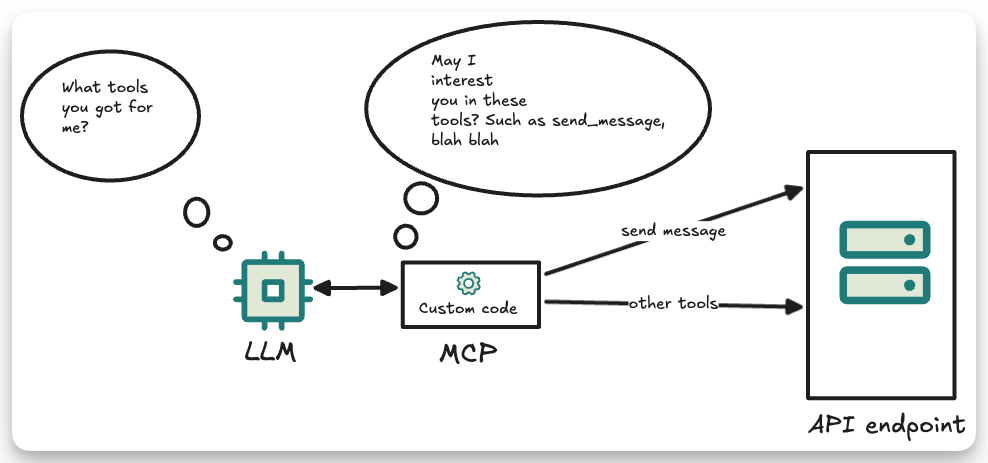
The big benefit that MCP provides to LLMs and applications is that it equips them with tools to perform more actions on your behalf without having to adjust the source code.
What can you do with the Palette MCP?
The Palette MCP server enables you to complete a range of different common tasks in Palette, via your LLM or preferred MCP client. Today, you can:
- Get information about clusters deployed through Palette
- Download the Kubeconfig for a cluster
- Delete a cluster
- Get information about cluster profiles in Palette
- Delete a cluster profile
- Tag a cluster, cluster profile, cluster template, or policies in Palette
We’ve distributed Palette MCP as a standalone Docker image, which means no external dependencies are required. All you need is a Palette API key, a Palette project ID, and a Palette URL if you are using self-hosted Palette. The Palette MCP server itself is free; it’s a utility tool intended to help you interact with Palette, much like the Palette CLI.
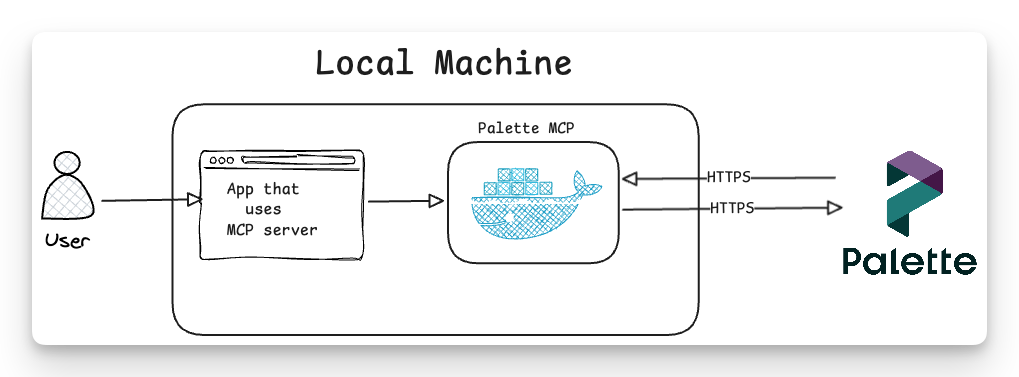
When you connect the Palette MCP server to your favorite MCP client (such as Codex or Claude Desktop), a local Docker container is spun up that contains the actual MCP server. The MCP client communicates with the container through an exposed port. When the LLM decides to use one of the tools, such as search_and_manage_resource_tags, the request goes to the container, and from there the MCP server makes the required Palette API calls and returns the aggregated output back to the MCP client or AI application.
Before moving on to the next section, you might want to check out the Setup Palette MCP section on our official documentation site.
Using the Palette MCP safely
A privileged toolset deserves a careful API key strategy. Before pointing any LLM at your Palette instance and the clusters it manages, a few principles we’d recommend:
- Use a dedicated service user. Palette API key permissions inherit directly from the user who creates the key, and the role they have been assigned. Access to specific commands is still gated by Palette permissions. We suggest you create a user with only the roles the MCP needs and generate the key from that account. Avoid using keys tied to admins or anyone with permissions you don’t want an LLM exercising on your behalf.
- Scope to a single project where possible. The Palette MCP takes a project ID at startup. For most workflows, a project-scoped key is plenty, and it limits the blast radius if a prompt goes sideways.
- Set an expiration date and rotate. Palette API keys support expirations. Use them. For experimental work, short windows are sensible.
- Treat the key as a secret. Store it in a password manager or secrets manager rather than your shell history, and remember Palette only displays the key once at creation.
- Review ‘dangerous actions’ settings. The Palette MCP server supports two dangerous actions, delete cluster profile, and delete cluster. By default, dangerous actions are disallowed. However, in the event you want to enable this capability, set the environment variable ALLOW_DANGEROUS_ACTIONS=1
It’s also worth noting that the Palette MCP container runs locally on your machine, and the key stays in your environment. Credentials don’t leave your laptop or hit a third-party server. That’s deliberate. We encourage you to check out the Palette MCP security section in our documentation to learn more.
Example use cases
If you are a Palette user, you might be asking yourself, how can I use the Palette MCP server? What workflows can I get started with? Glad you asked. The current tool calling list allows you to quickly ask common questions, such as: "Do I have any active clusters?" How long has the cluster been active? What cluster profile is this cluster using? What packs are in the cluster profile?
These common questions typically would have you log in to the user interface and navigate a few screens to retrieve the answer. Now, you can ask your favorite LLM to get the answers for you, without interrupting your flow.
Retrieving kubeconfig and debugging
The Palette MCP has a tool for retrieving the kubeconfig file of a Palette-deployed cluster. The getKubeconfig tool can retrieve the regular kubeconfig file or the admin kubeconfig file (if you have the right permissions). At face value, you may consider the obvious benefit “Oh, I can have my LLM download the kubeconfig for me”, and while that is true and a very common use case, this tool call can be the foundation for a series of following actions once you have the kubeconfig of a cluster.
Imagine you have a cluster in an unhealthy state. Instead of going through normal debugging by yourself, you could ask the LLM to use the Palette MCP server to get you the kubeconfig file for the cluster and to help you debug. The latter part is important: once an LLM has access to the kubeconfig file, with proper guidance, you can have it use kubectl and start investigating alongside you. Depending on the LLM you are using, many times the LLM will find the root cause before you have time to spin up k9s and navigate to the resource that is in a bad state.
This scenario highlights an important aspect of the Palette MCP server and its vision: it's not focused on direct Kubernetes actions, such as “list pods,” for example. We believe existing tools, such as kubectl, are powerful and do not warrant duplicating functionality that your LLM already knows how to use itself. Once your LLM has the kubeconfig for a cluster, it can help you achieve your goal, whether that’s debugging a failed deployment or putting a node in maintenance.
The Palette MCP server instead focuses on bringing Palette’s platform capabilities to you and your LLM, and providing you with the essential ingredient for other workflows: namely, access to the kubeconfig file. We also benefit from minimizing tool calls, which reduces the risk of your LLM getting overwhelmed.
Tag, you’re it
It’s hard to imagine working in an enterprise setting and not being required to add a set of tags to resources. So much of our day-to-day work revolves around tags, whether it's a tag in a Markdown file or tagging a cloud resource, such as a Kubernetes cluster.
Palette supports tagging resources, such as cluster profiles, clusters, and so on. Right out of the box, the Palette MCP server supports tagging Palette resources. You could, for example, ask your LLM to tag all clusters, without navigating to the Palette user interface. Now, that’s a trivial example, but it highlights the potential for the Palette MCP server to meet you where you are.
A better example, and one we have a tutorial for, is combining different actions to achieve an outcome. Let’s take a real case: Ingress NGINX got retired in March 2026. At the time of this writing, numerous enterprises are still using Ingress NGINX. Imagine you’re a platform engineer and your department head asks, “How many clusters in our environment are using Ingress NGINX?” “How do we track the upgrade effort”? As an engineer you have a few options. You could manually check each cluster, or you could write a script to scan your entire environment and check each cluster. Both options require some time and effort.
However, with the Palette MCP server, you could delegate this task to a state-of-the-art frontier model and get the answer quickly. With the proper prompt, you could ask the LLM to do the following:
“Find all cluster profiles that contain the Ingress NGINX pack. Once you have identified all cluster profiles with the pack, review all active clusters and identify if the cluster is using one of those affected cluster profiles.”
Now, you could stop at the prompt above, get a list from the LLM, and pass it on to your department head. But we could also take it a step further and use the Palette MCP server’s search_and_manage_resource_tags tool to help us track these resources. We could ask the LLM to tag all the cluster profiles and clusters that are using Ingress NGINX. To achieve this, all that’s needed is to update the prompt:
“Find all cluster profiles that have the Ingress NGINX pack. Once you have identified all cluster profiles with the pack, review all active clusters and determine whether each cluster is using one of those affected cluster profiles. For all cluster profiles and active clusters that have Ingress NGINX, go ahead and add the tags nginx:found, reviewed:2026-04-23”
And just like that, the LLM tag will tag all the identified instances for you. Now you and your department can review the list together, and through the Palette UI, you can filter for clusters or cluster profiles tagged nginx:found.
Wanna try it out?
If reading about the Palette MCP has piqued your curiosity, we encourage you to take it for a spin.
How? Our talented documentation team has created excellent resources to help you get started with setting up the Palette MCP server for common MCP clients such as Cursor, Gemini, and Claude Code. Check out the Setup Palette MCP section. The team also put together a guide to showcase how to use the Palette MCP server in an agentic workflow. This is a more advanced use of the Palette MCP server, but it’s a good starting point if you want to create agentic workflows and include the Palette MCP server
We built this MCP to make your life as an operator easier: meeting you and your workflows where you are. So we need your help! Give us your feedback and tell us what we can do to shape the next evolution.